
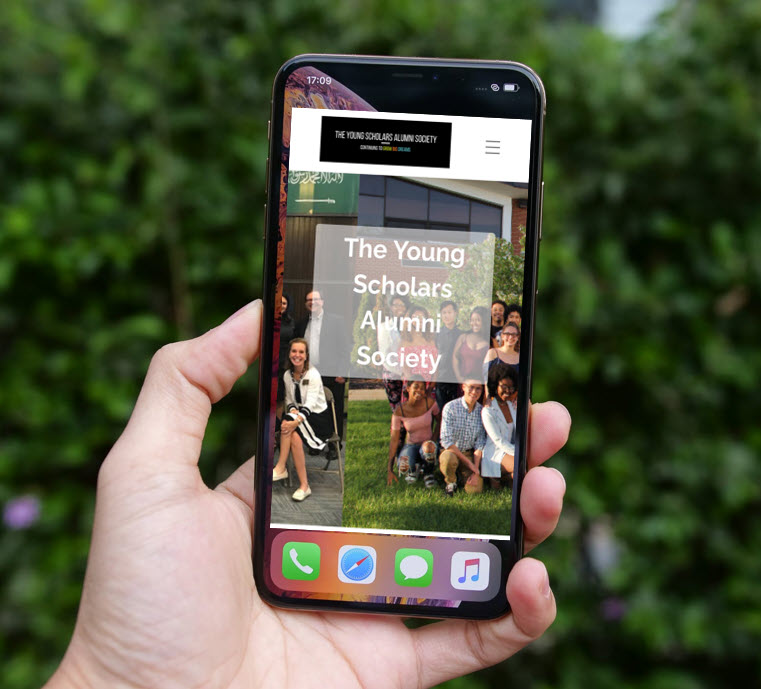
Use your phone to access our website without having to use your browser is simple – once you know how!
Here’s what to do:
🍏 For iPhone (iOS)
Using Safari browser:
- Open Safari (must be Safari, not another browser).
- Navigate to ysalumnisociety.org.
- Tap the Share icon (a square with an upward arrow) at the bottom of the screen.
- Scroll down and tap “Add to Home Screen.”
- Edit the name if desired.
- Tap “Add” in the top-right corner.
A shortcut icon will now appear on your Home Screen that opens the website directly in Safari.
Note: This feature is only available in Safari due to iOS limitations.
📱 For Android Phones
Using Google Chrome:
- Open Google Chrome.
- Go to the ysalumnisociety.org you want to add.
- Tap the three-dot menu (top-right corner).
- Tap “Add to Home screen.”
- Edit the shortcut name if you’d like.
- Tap “Add.”
- Choose either “Add automatically” or manually drag the icon to place it.
Using Samsung Internet:
- Open Samsung Internet
- Visit ysalumnisociety.org.
- Tap the menu icon (three horizontal lines or dots).
- Select “Add page to” > “Home screen.”
Using Firefox:
- Open Firefox
- Go to ysalumnisociety.org.
- Tap the three-dot menu in the top-right corner.
- Tap “Add to Home screen.”
A website shortcut will now appear as an app-like icon on your Android home screen.